safepal

How to swap in SafePal

Open the STON.fi DApp inside the SafePal app, connect wallets, then finish the Flight Mission.

in the app

open the dapp

Open the DApp

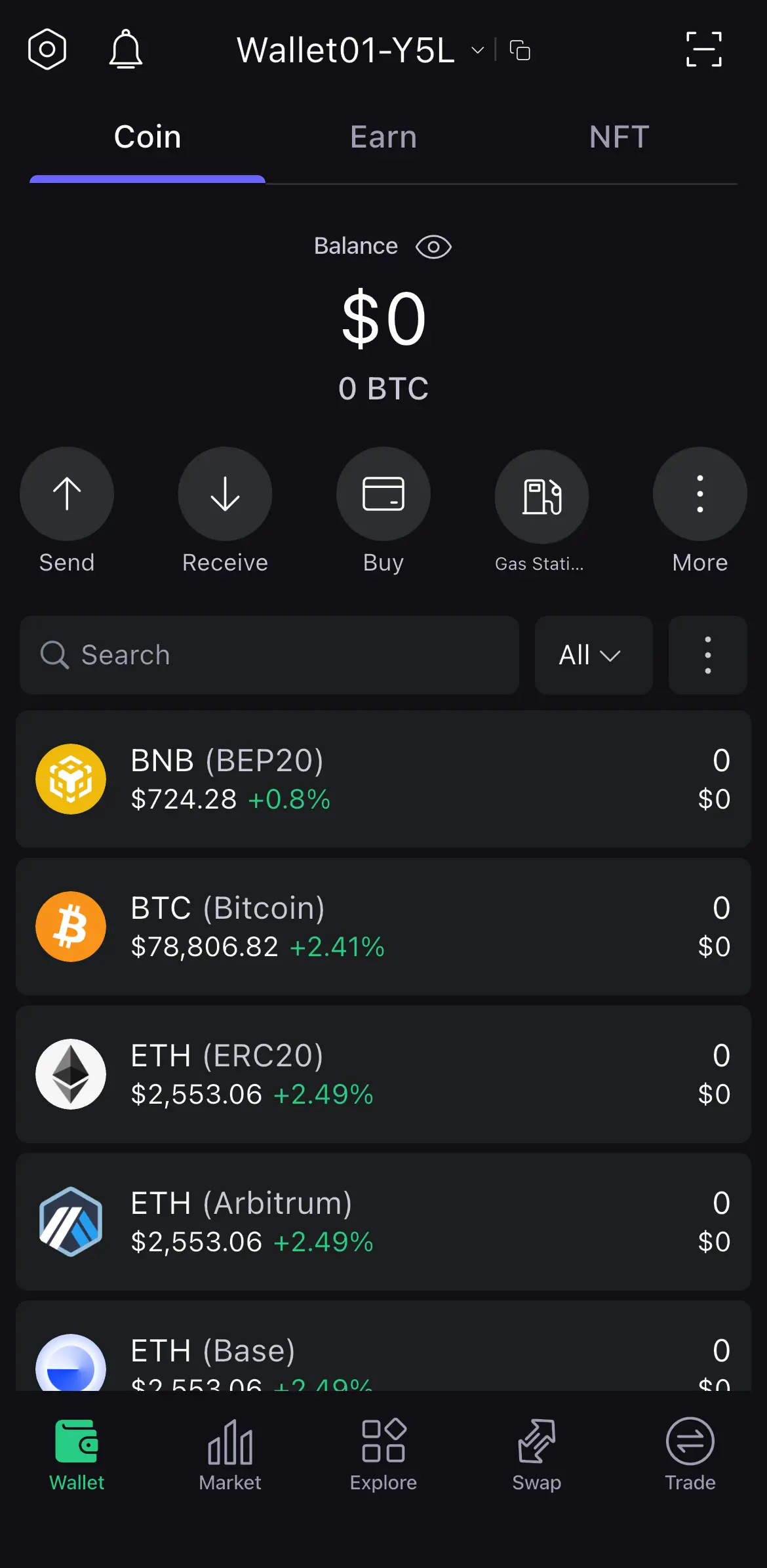
  1. Open the SafePal app.

    Open the SafePal app.
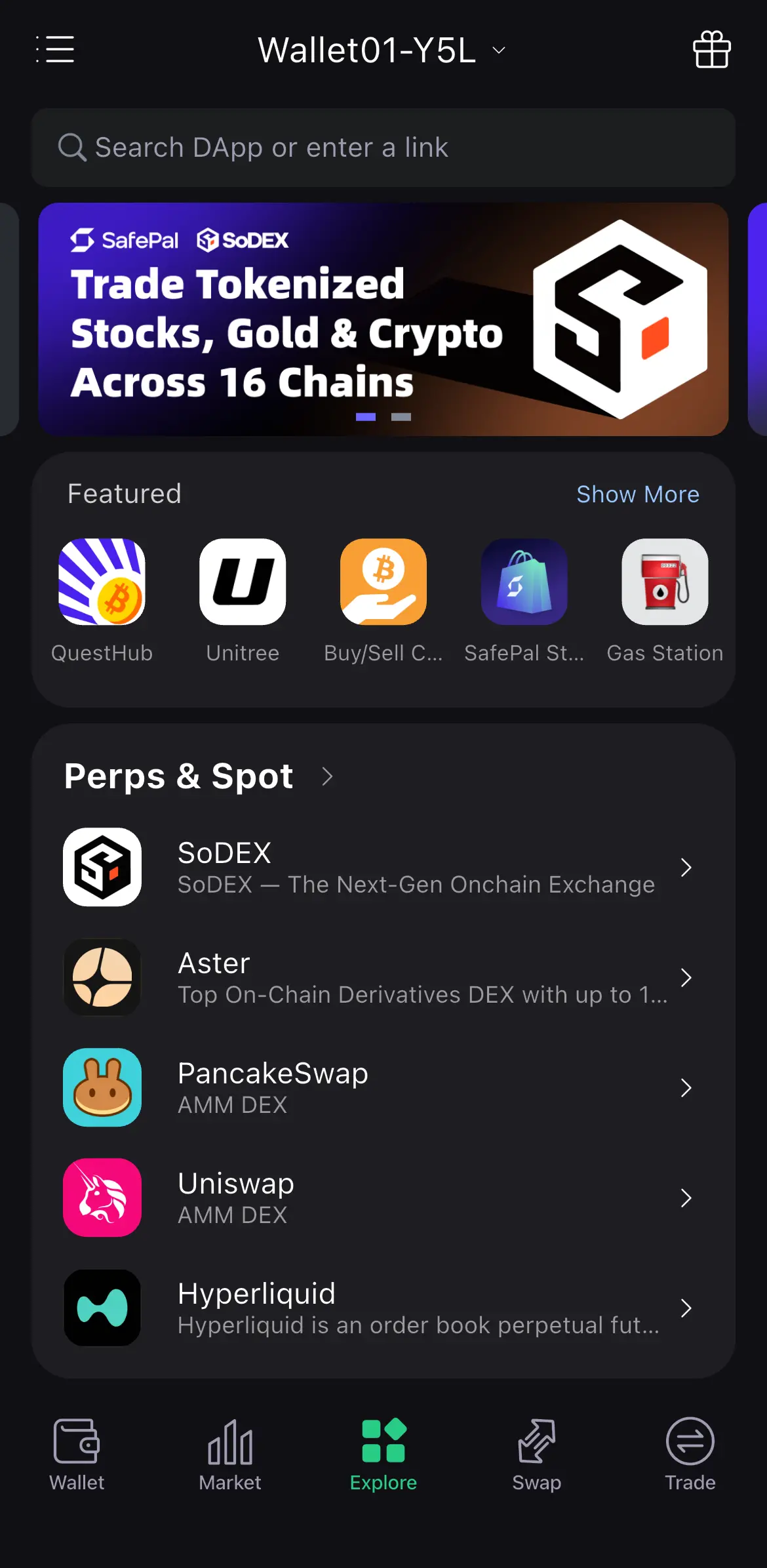
  2. Go to Explore in the bottom menu.

    Go to Explore in the bottom menu.
  3. Scroll to the bottom and tap View More DApps.
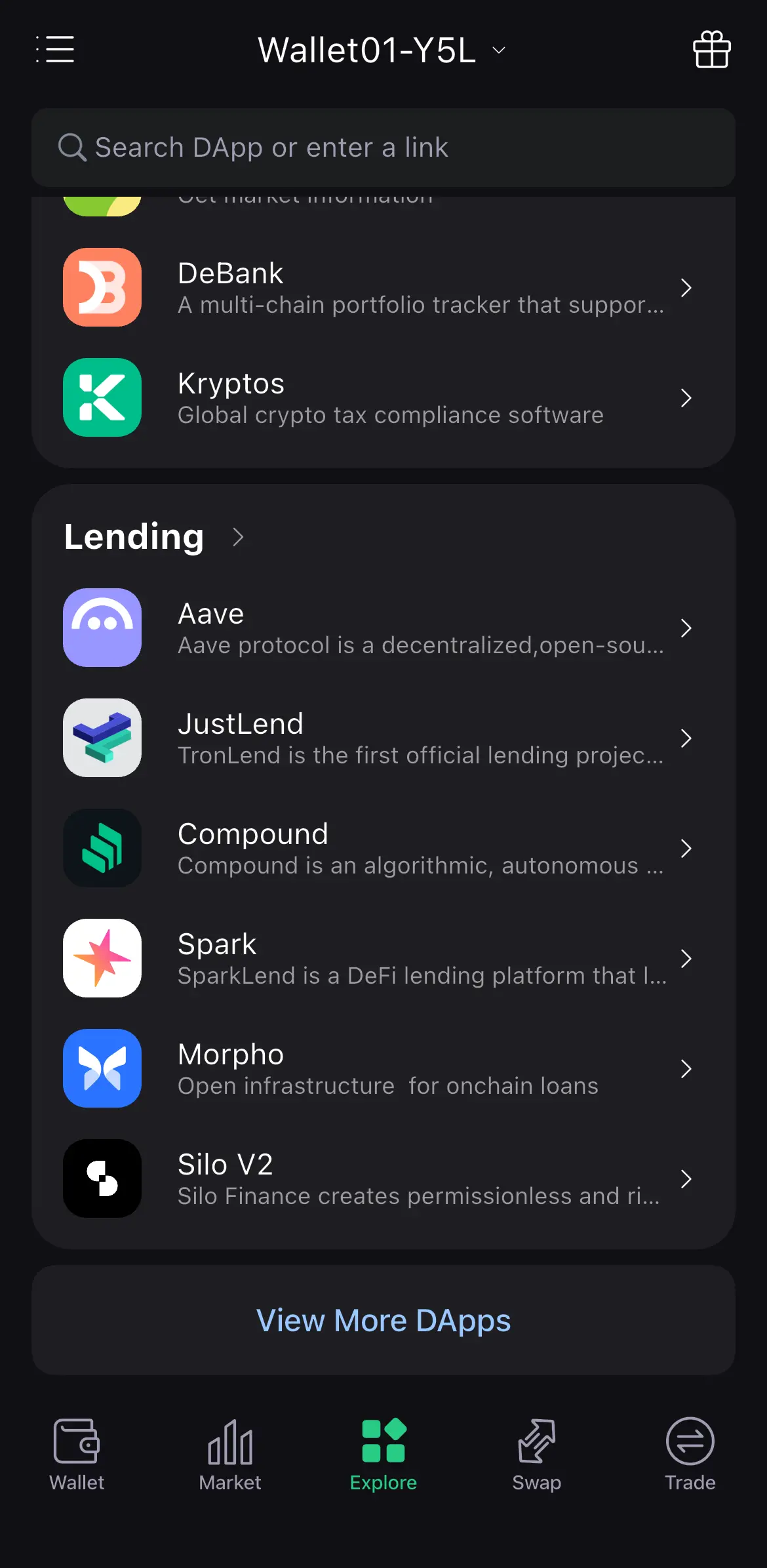
    Scroll to the bottom and tap View More DApps.
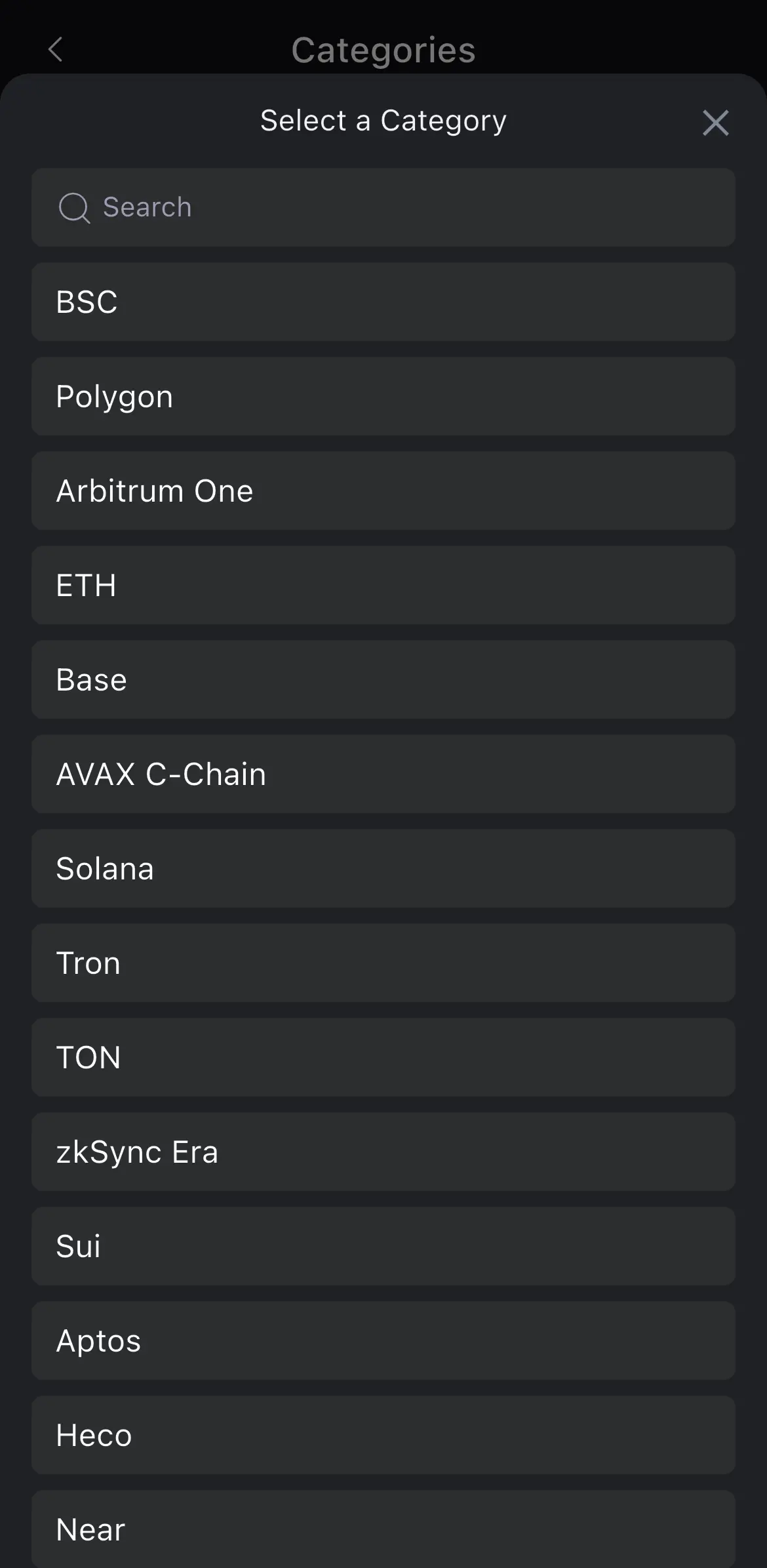
  4. Tap the arrow at the right of the category tabs.
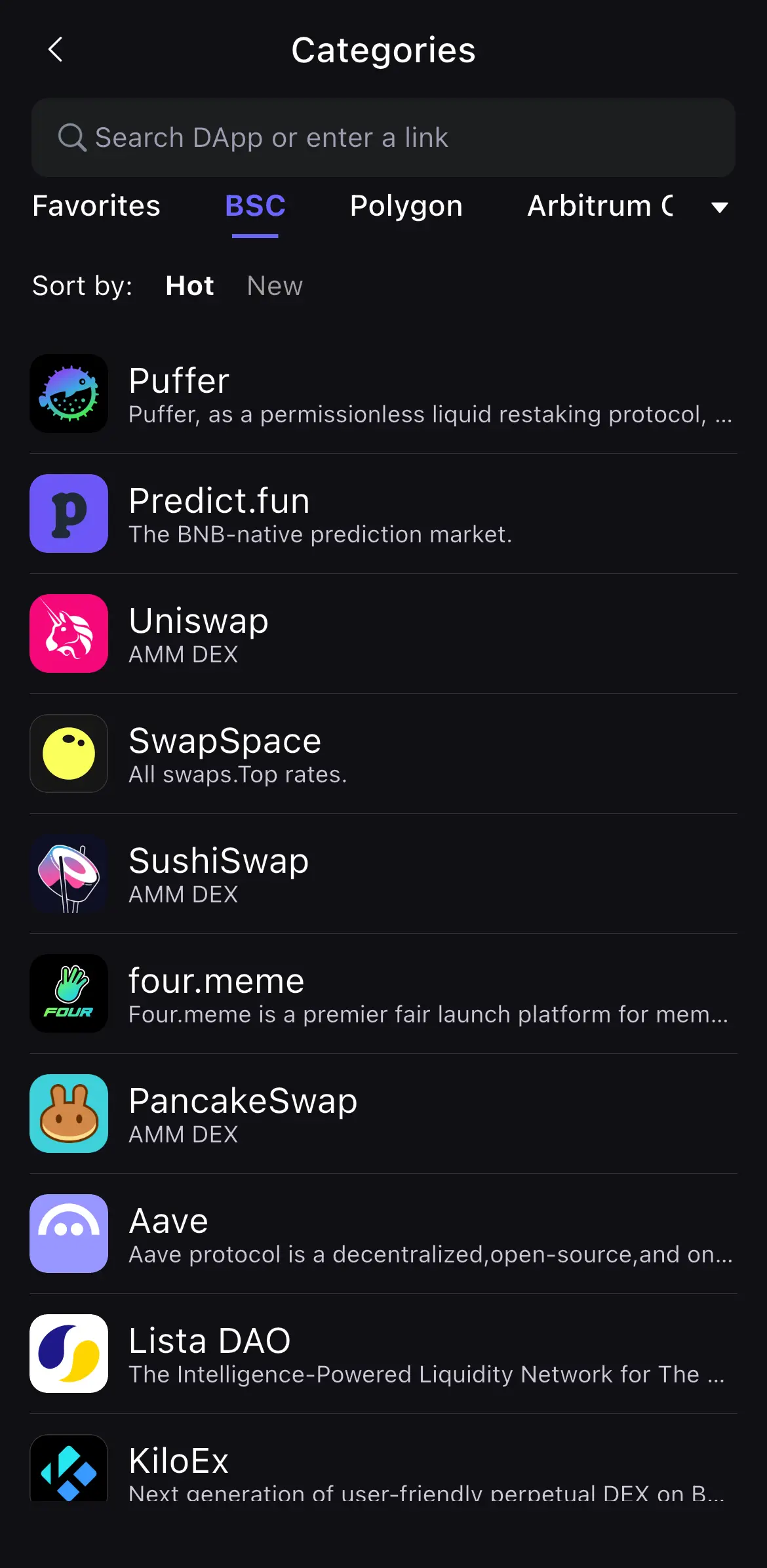
    Tap the arrow at the right of the category tabs.
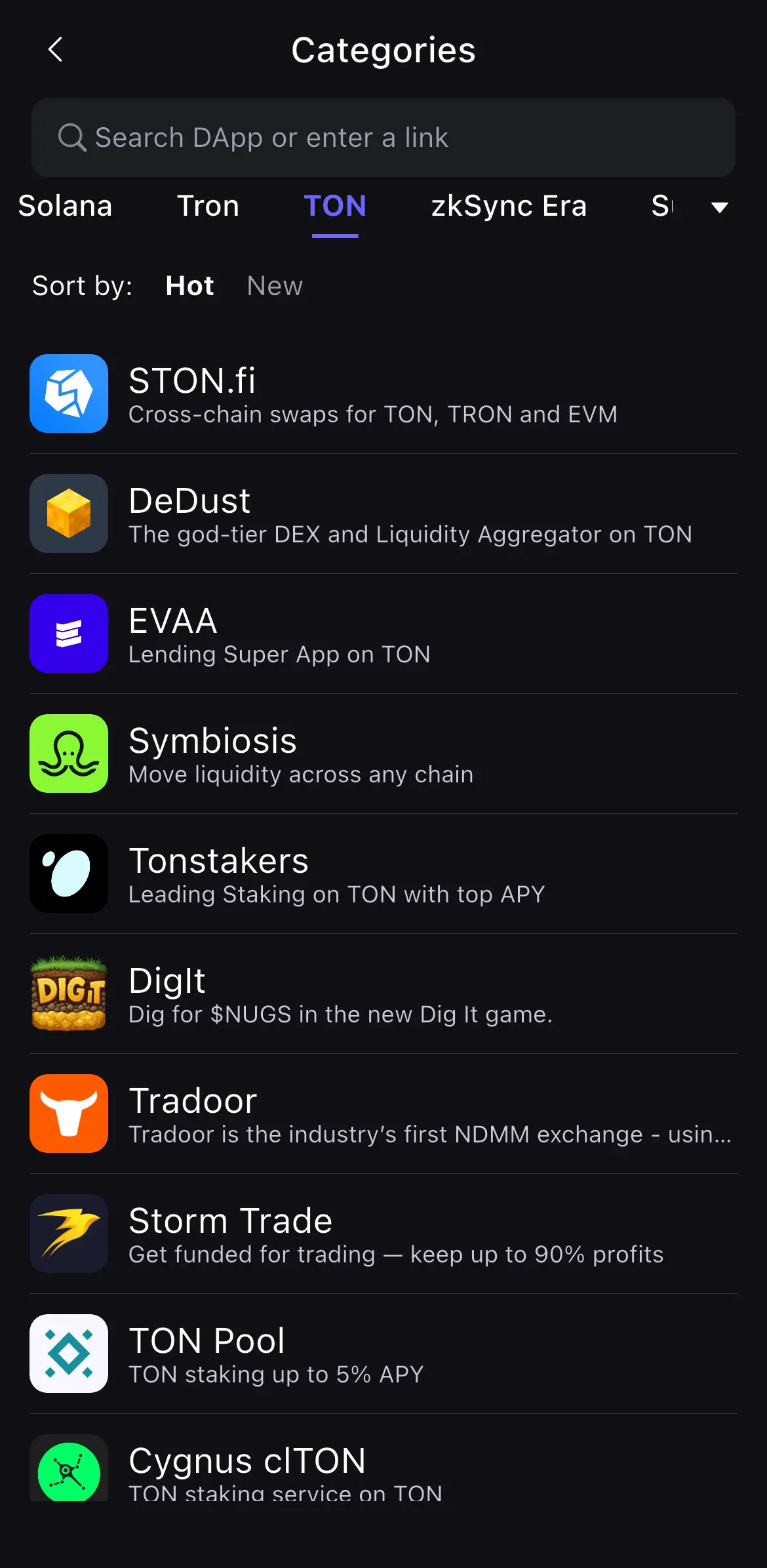
  5. Find TON.

    Find TON.
  6. Tap STON.fi.

    Tap STON.fi.

connect wallets

Connect wallets

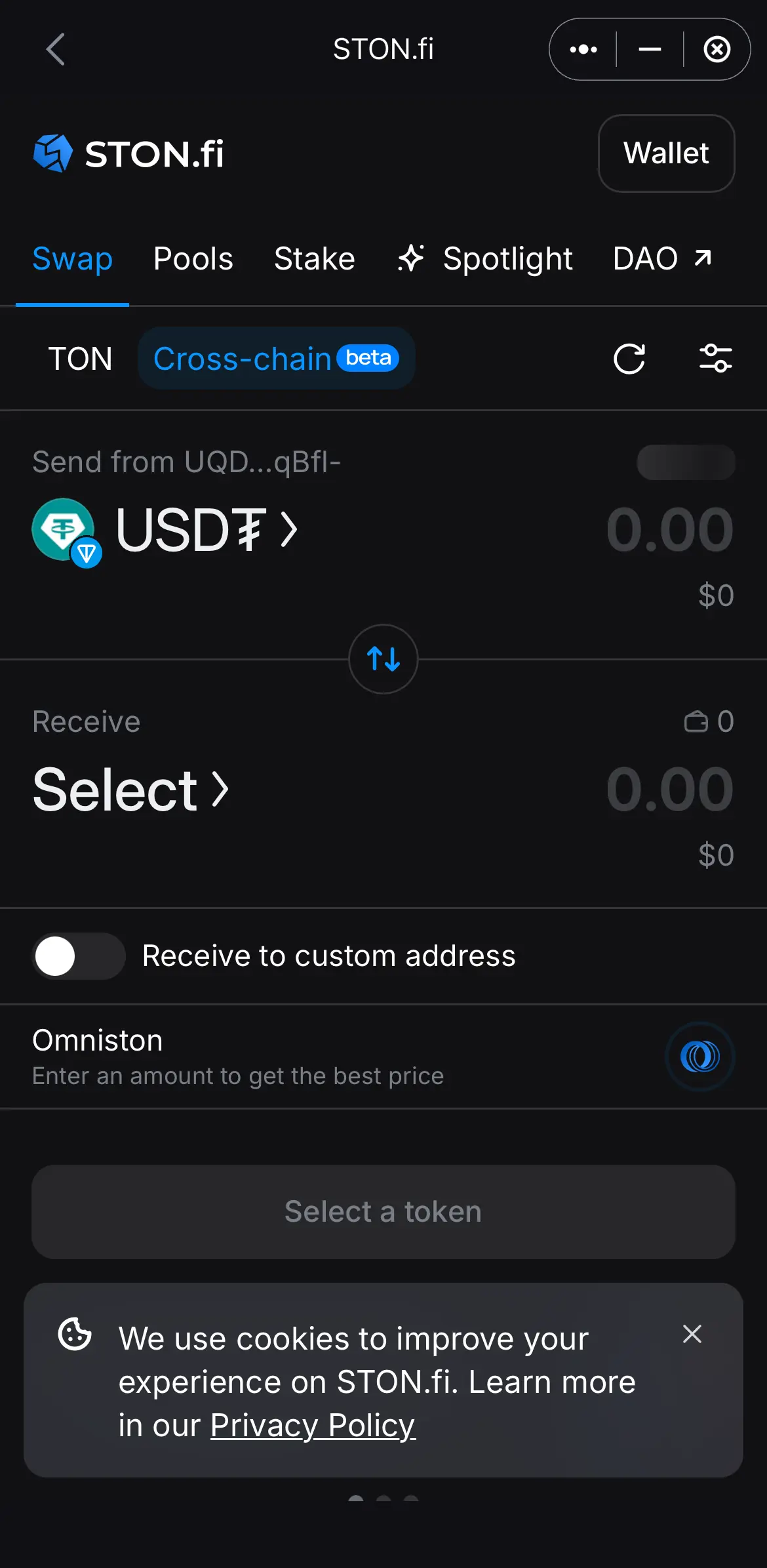
  1. Tap Cross-chain, then Wallet in the top right.

    Tap Cross-chain, then Wallet in the top right.
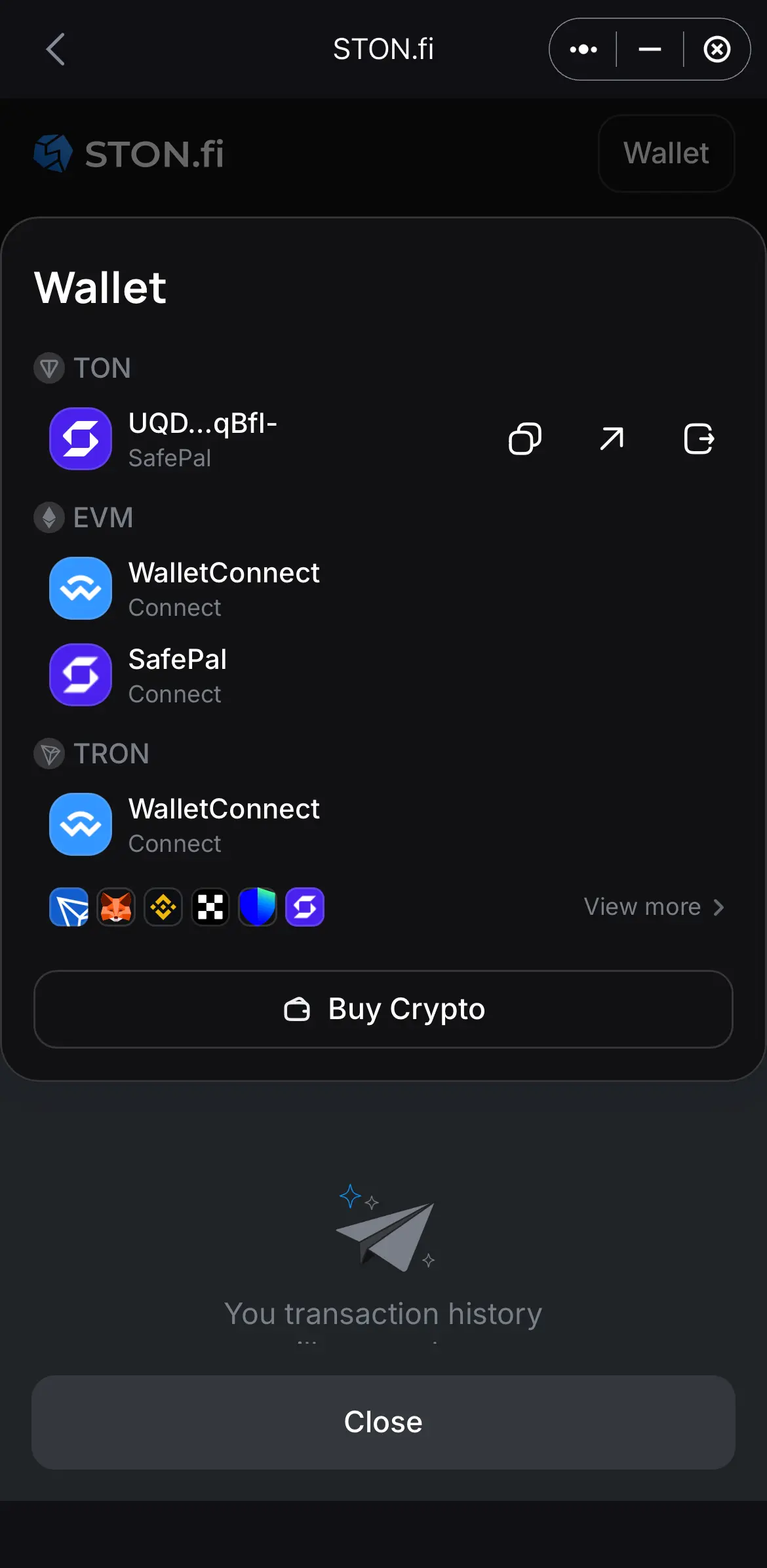
  2. TON connects automatically. For EVM, tap WalletConnect — not the SafePal row. Same for TRON.

    TON connects automatically. For EVM, tap WalletConnect — not the SafePal row. Same for TRON.
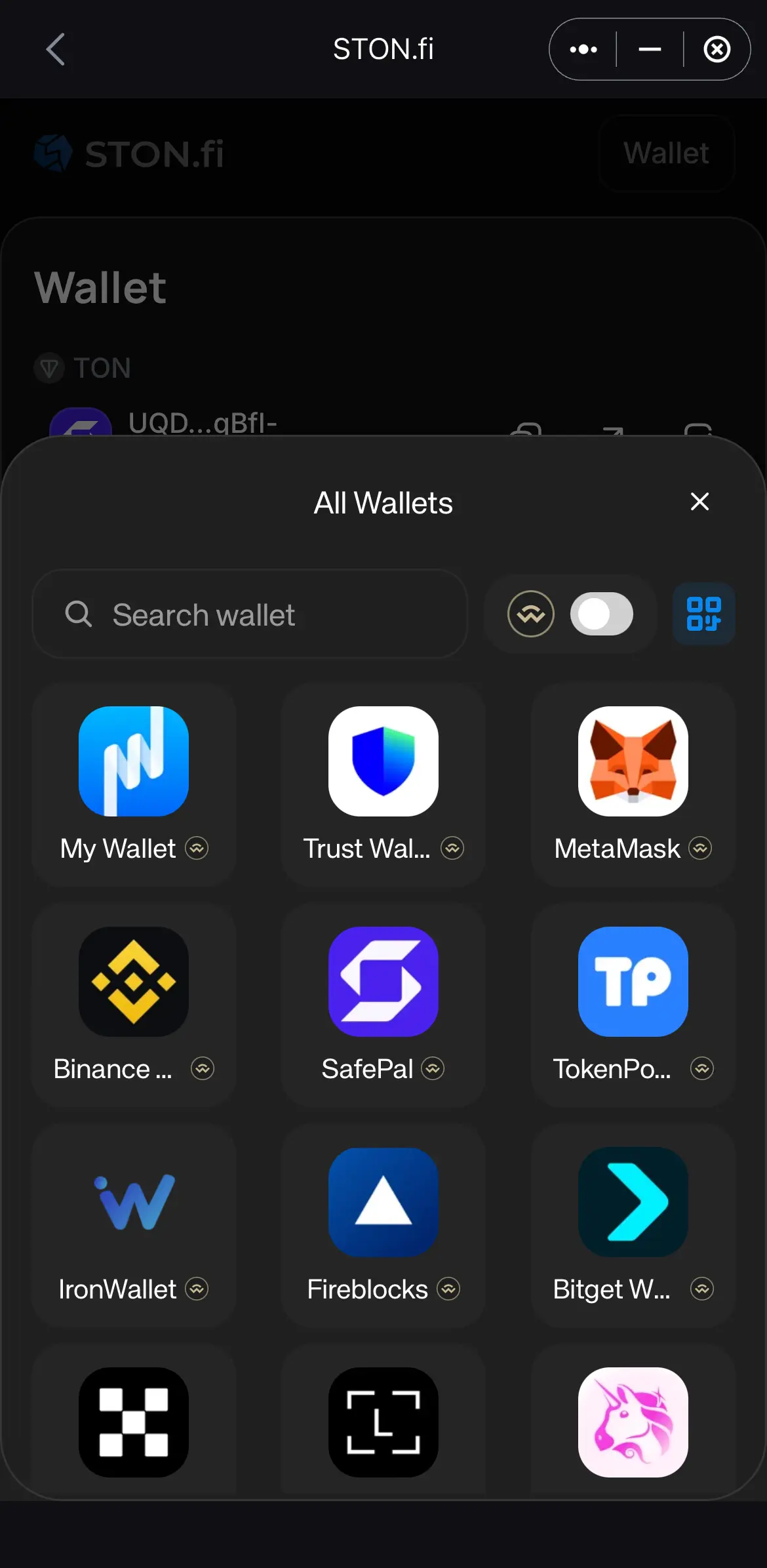
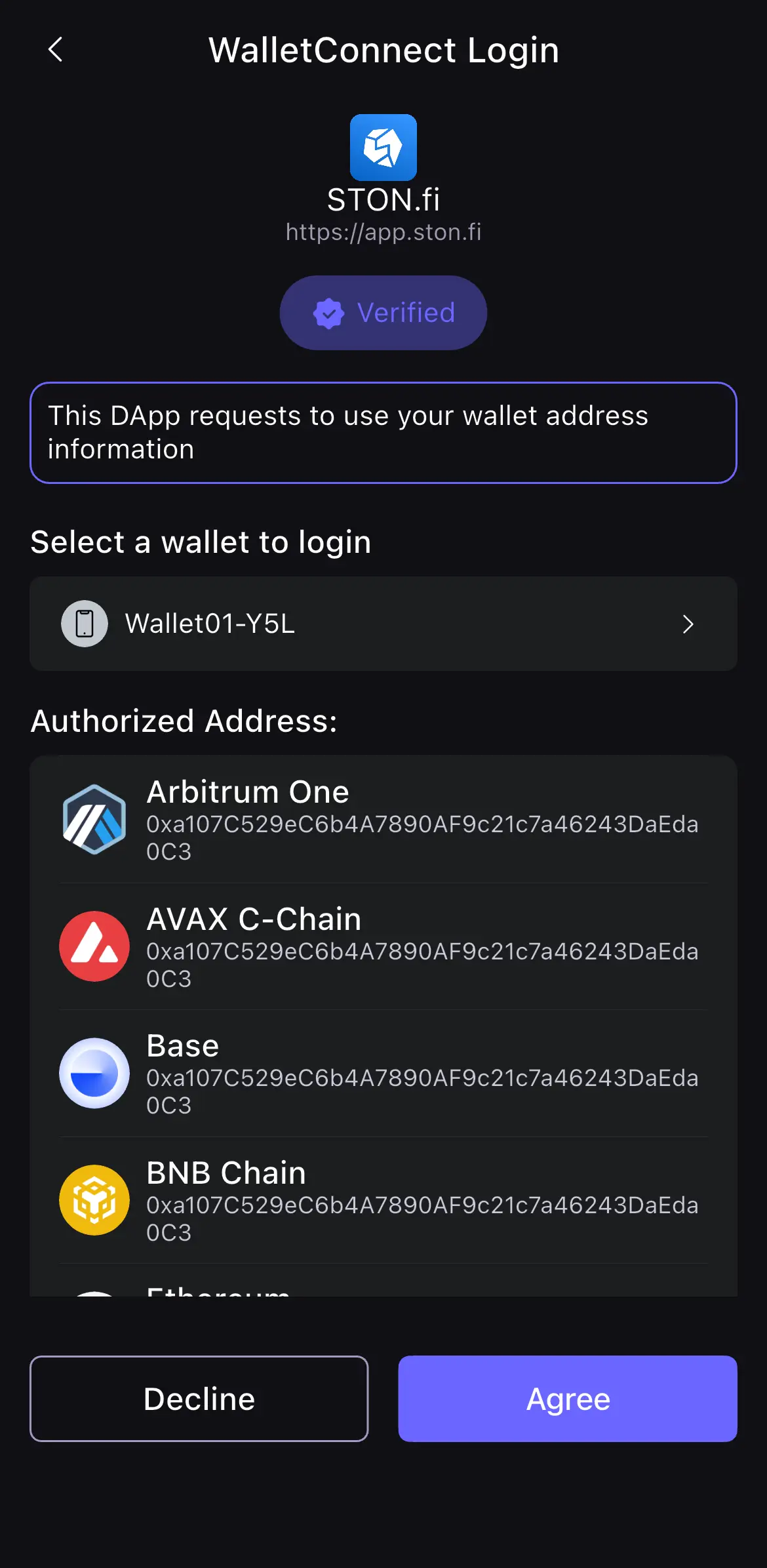
  3. Choose SafePal in the WalletConnect list. Search if you do not see it.

    Choose SafePal in the WalletConnect list. Search if you do not see it.
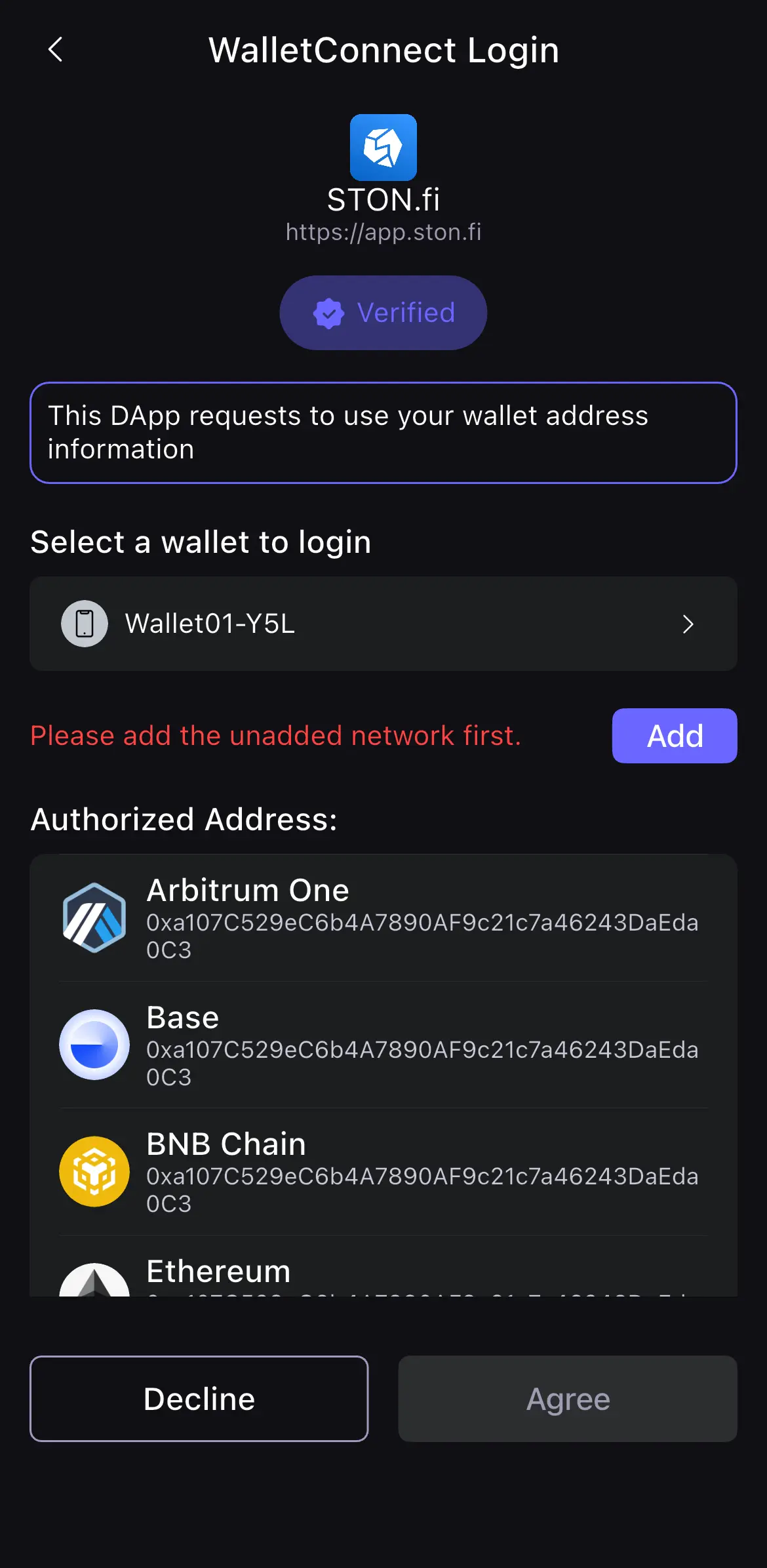
  4. Tap Add when asked to add chains.

    Tap Add when asked to add chains.
  5. Tap Agree.

    Tap Agree.

swap

Swap

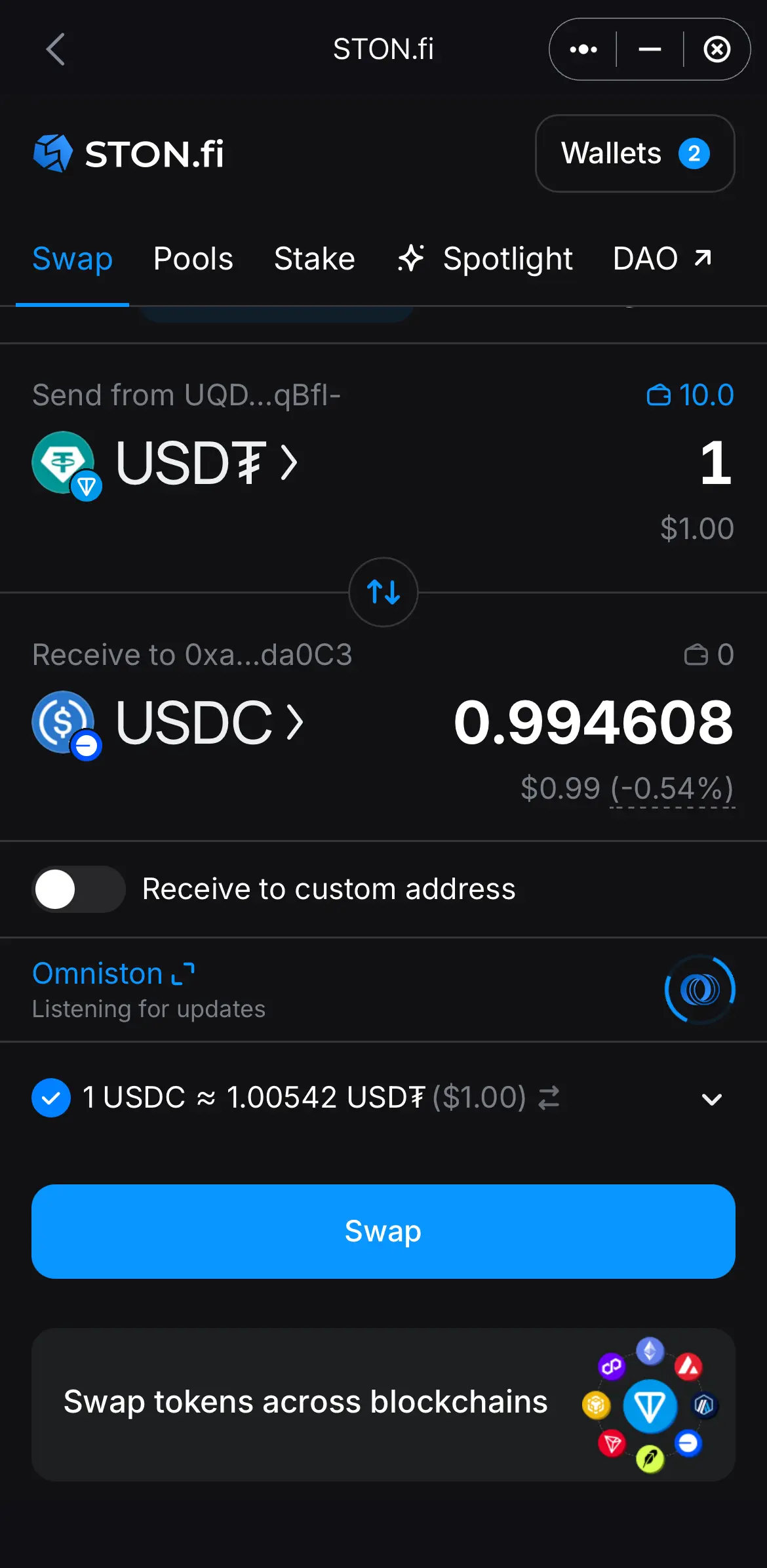
  1. Wallets are connected. Start a cross-chain swap.

    Wallets are connected. Start a cross-chain swap.
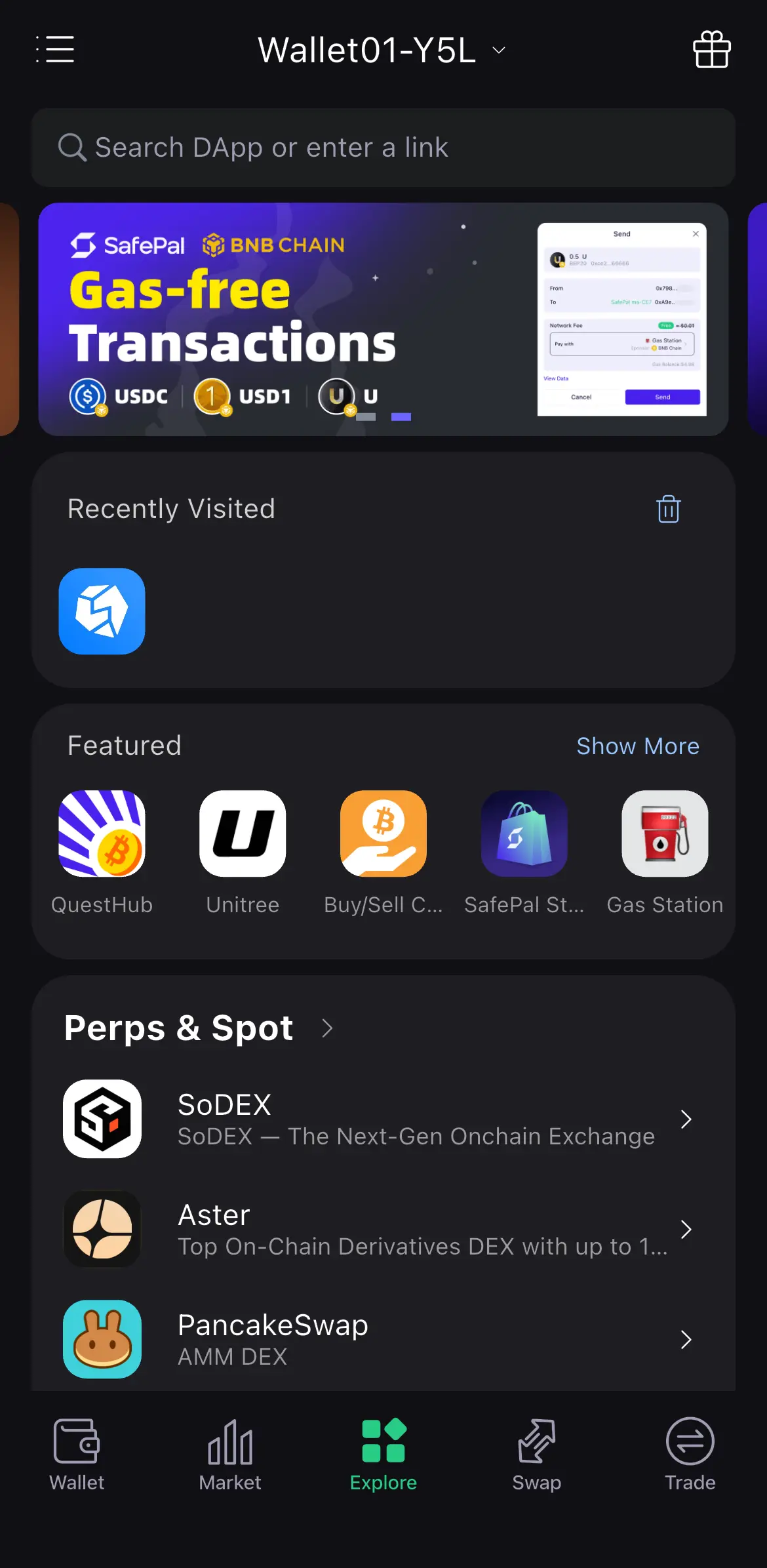
  2. Next visit, STON.fi is under Recently Visited.

    Next visit, STON.fi is under Recently Visited.

flight mission

Flight Mission

  • Complete $50 in eligible cross-chain volume in that DApp, then tap verify on the SafePal Flight Mission tile.
  • If the swap used TON / EVM / TRON addresses that are not on this campaign seat, add them with add SafePal addresses (one per chain, saved once).

Back to partner missions